GR LearnPro – Student Course Progress

The Student Course Progress page provides a real-time view of student activity, scores, and engagement. It enables teachers and administrators to track progress, manage coursework, and intervene effectively to support student success.
Accessing the Performance Dashboard
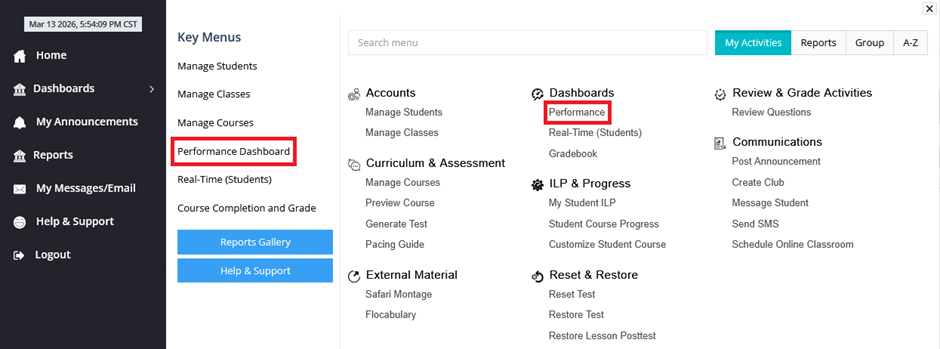
1. Under “My Activities,” navigate to “Performance” under “Dashboards.” This is also available under Key Menus.
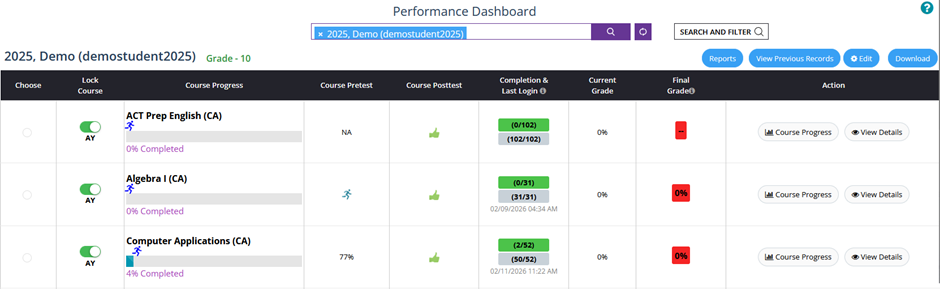
2. Enter the student id in the search field and click on “Search.” The student’s full name and grade will be displayed, below which the courses the student is enrolled will be displayed
|

|
5. Right next to the radio button is the lock/unlock course button:
- When course is locked, the button will be gray, and students cannot work on it

- When course is unlocked, the button will be green, and students can work on it

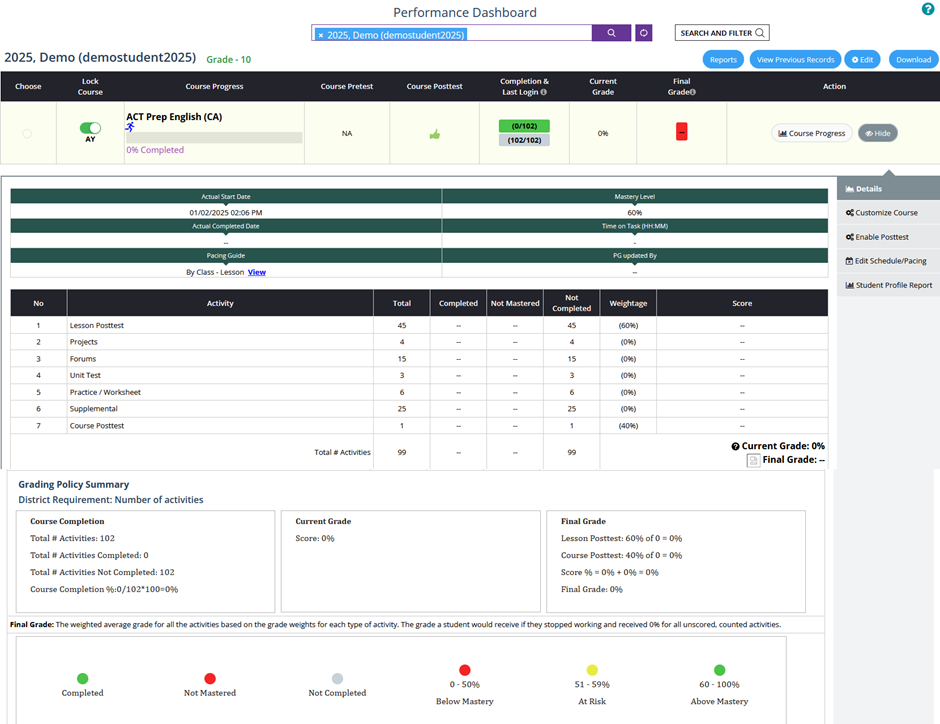
6. Next to the Lock Course button is the Course Progress:
- When course is not started, the progress bar will be in gray with 0% completed

- When course is in progress, the progress bar will have a running man icon, with the % of completion displayed below

- When course is completed, a green man icon with a trophy symbol will be displayed with 100% completion

7. Next to the Course Progress is the Course Pretest:
- When the test is not enabled or started, there will be a NA denoting it

- When the test is enabled, a round green button will denote it

- When the test is in progress, a running man icon will denote it

- When the test is completed, the score will be displayed

8. Next to the Course Pretest is the Course Posttest:
- When the test is not enabled or started, a round green button will denote it

- When the test is enabled, a thumbs up icon will denote it

- When the test is in progress, a running man icon will denote it

- When the test is completed, the score will be displayed

9. Next to the Course Posttest is the Completion & Last Login:

|


12. The next column is the Action:
- Click on the “Course Progress” to see the scores of individual activities – course pretest, lesson posttest, project, forum, unit test, etc.
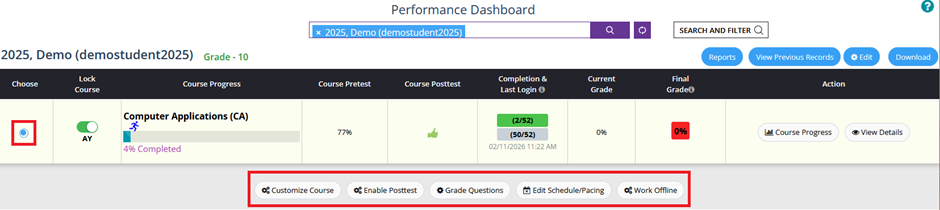
- Teachers and administrators can take various actions to assist students in their progress:
|

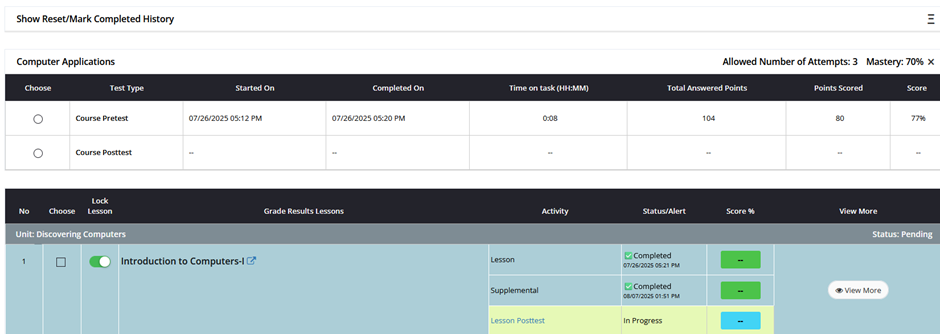
- Click on the “View Details” to see the mastery level, weightage of the activities, no. of activities completed and not completed, calculation of the current and final grades
Tips
- Track completion rates, scores, and activity status regularly for better student support.
- Quickly identify students who need interventions based on activity status and mastery levels.
- Reset pretests, posttests, and unit tests when necessary.
- Release tests or reset activities to allow students to reattempt and improve.
- Use the available data to provide insights to parents, school administrators, or academic advisors.
- Ensure students are keeping up with coursework and intervene when necessary.
- Reset tests only when students truly need a fresh attempt.
- Understanding Total Points, Points Scored, and Points Answered helps tailor learning support.
Was this article helpful?
That’s Great!
Thank you for your feedback
Sorry! We couldn't be helpful
Thank you for your feedback
Feedback sent
We appreciate your effort and will try to fix the article