The Student Experience
Homepage Includes:
- Dashboard shows the number of courses enrolled, overview, mastery achieved, and % completed courses.
- Course progress with percent score and percent completed are displayed on the dashboard.
- Announcements and Messages are sent to the student from the school and or Grade Results
- Group/Club info with notifications
- Course Pacing Guide with calendar – This feature helps students stay on track to complete coursework. The pacing guide will be setup according to district course pacing. It contains school holidays, teacher assignments and online assignments.
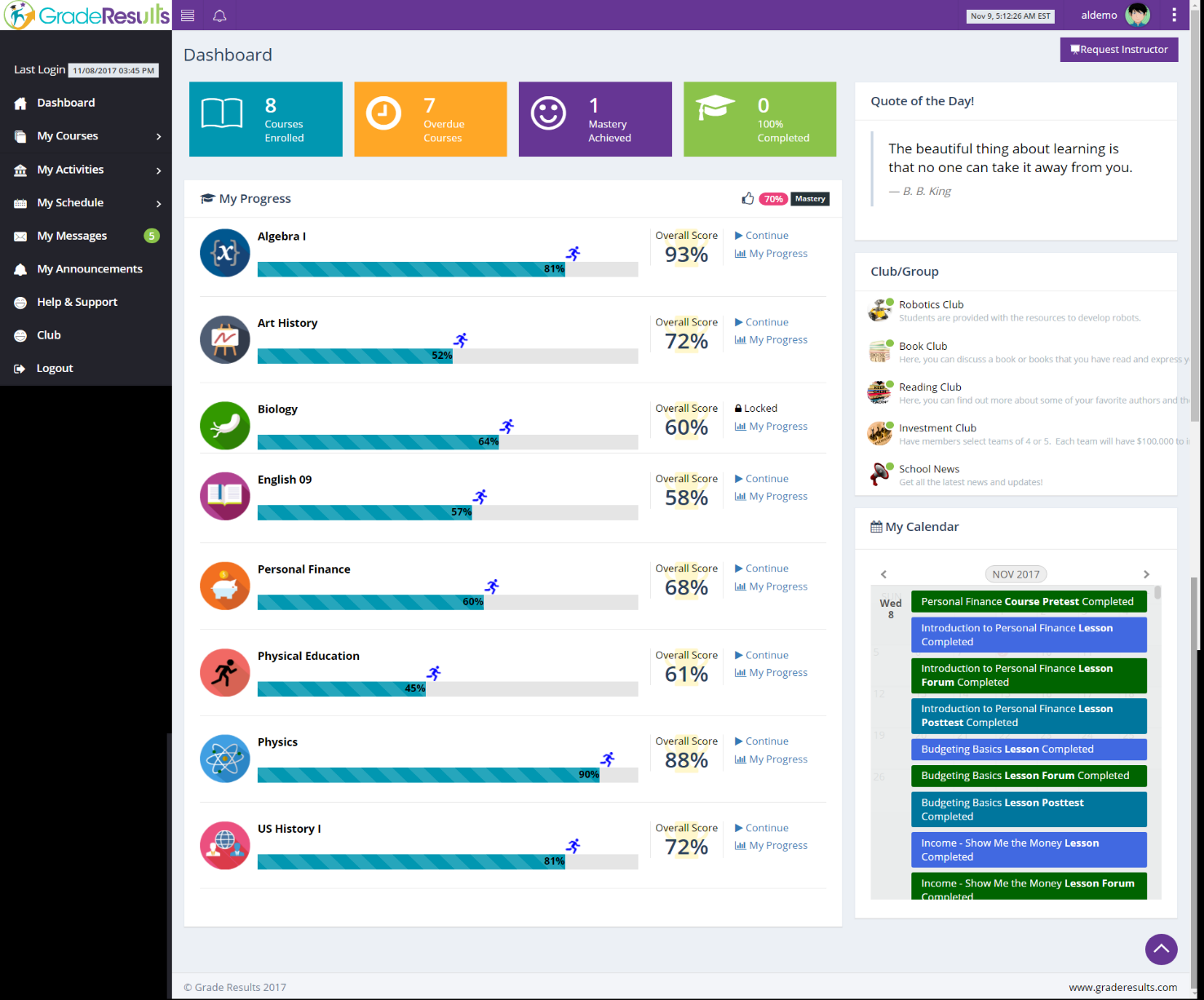
Dashboard Shows Percent Completed and Score for Course
Progress Bar with the Pacing Status: Students and teachers can view the status of course pacing. The progress bar will have different color-coded running man that represents status of pacing.
- Green is on target for pacing
- Blue is ahead of pacing
- Red is behind pacing
- Teal represents there is NO pacing (own pace) for the course.
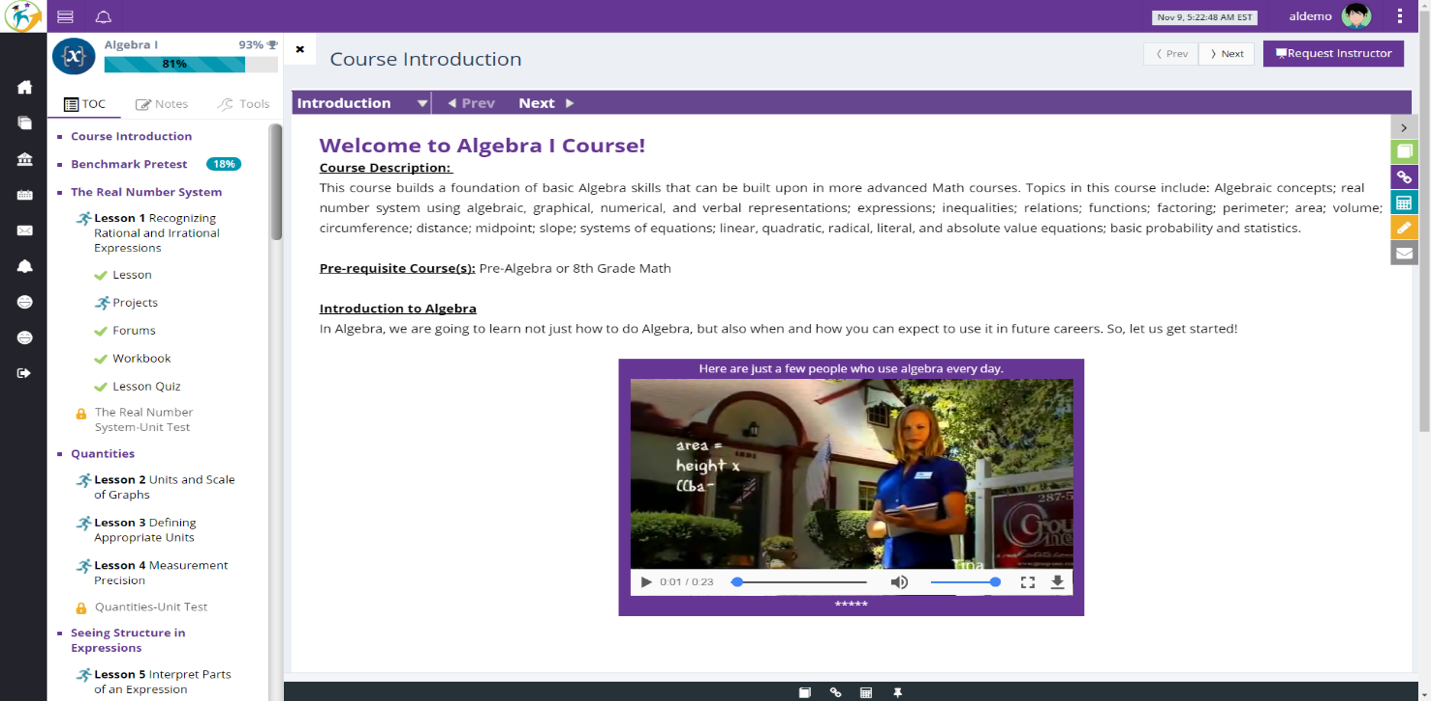
The standards based course organization includes the following content areas and activities which allows students to easily navigate through the course activities in a sequential order, from the beginning of the course through the end of the course.
- Introduction
- Course Pretest
- Lessons / Modules:
- Introduction
- Objective of Lesson
- Vocabulary Words Introduced in the Lesson
- Content
- Videos
- Supplemental
- Summary/Lesson Review
- Unit Test Questions AND/OR
- Lesson Posttest Questions: (5 MCQ’s and 2 OEQ’s)
- Course Posttest
Click on the “My Course Or Start” hyperlink on the My Progress widget or sidebar to access courses.
- Courses are listed in alphabetical order by subject.
- Click the “Start button” to begin a course.
- After a course has been started, click the “Continue button”
- The course tree lists all course lessons with a status symbol
After My Courses, on the sidebar is clicked, a course tree lists courses and each course expands with additional information. Course activities are displayed in the sequential order and status symbols provide additional feedback to the student. This sample student has successfully completed all lessons.
Note: In order to get the lessons OR to generate the individualized learning plan, students need to complete the course pretest.
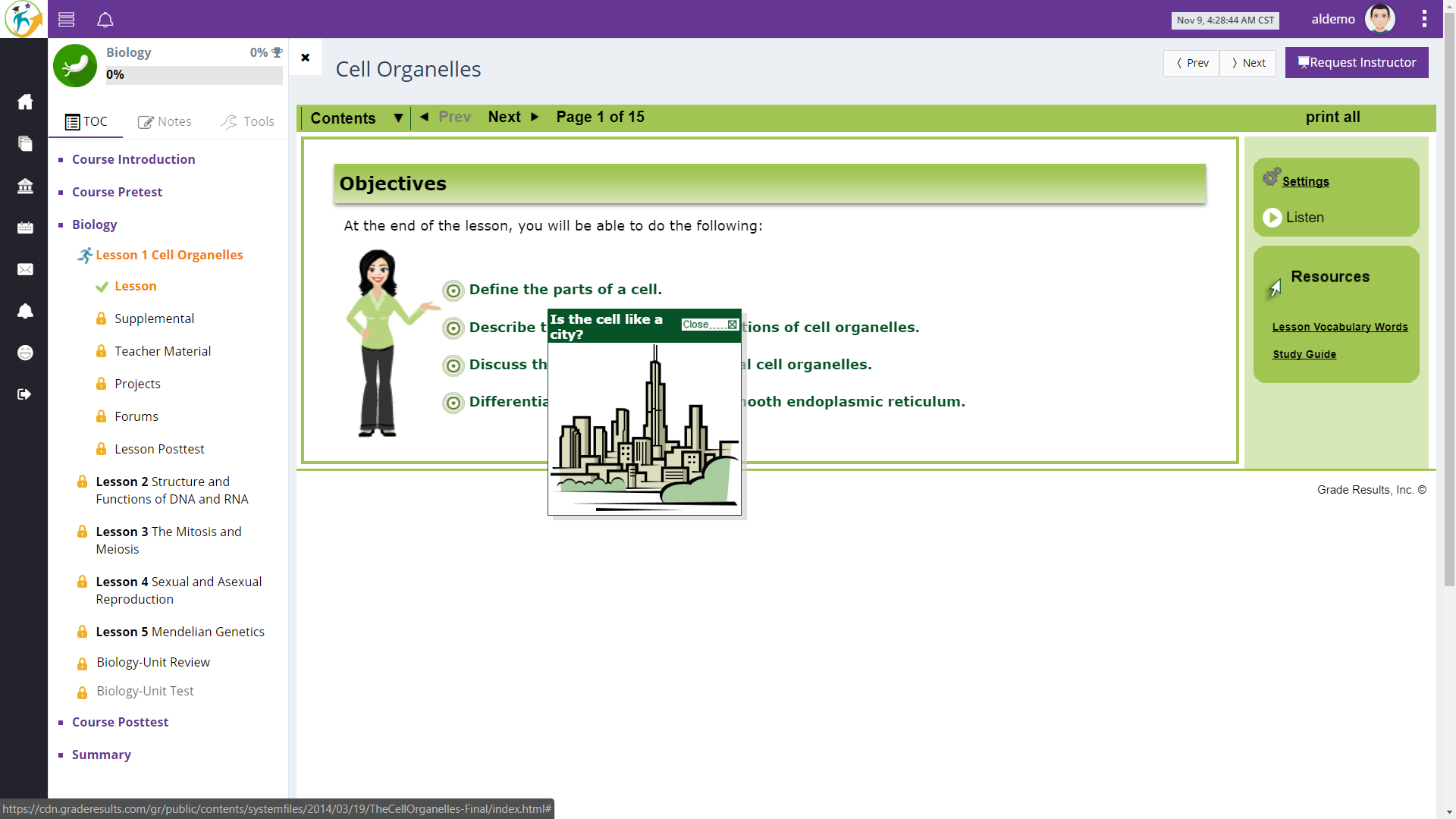
Courses include a series of lessons with multiple pages per lesson.
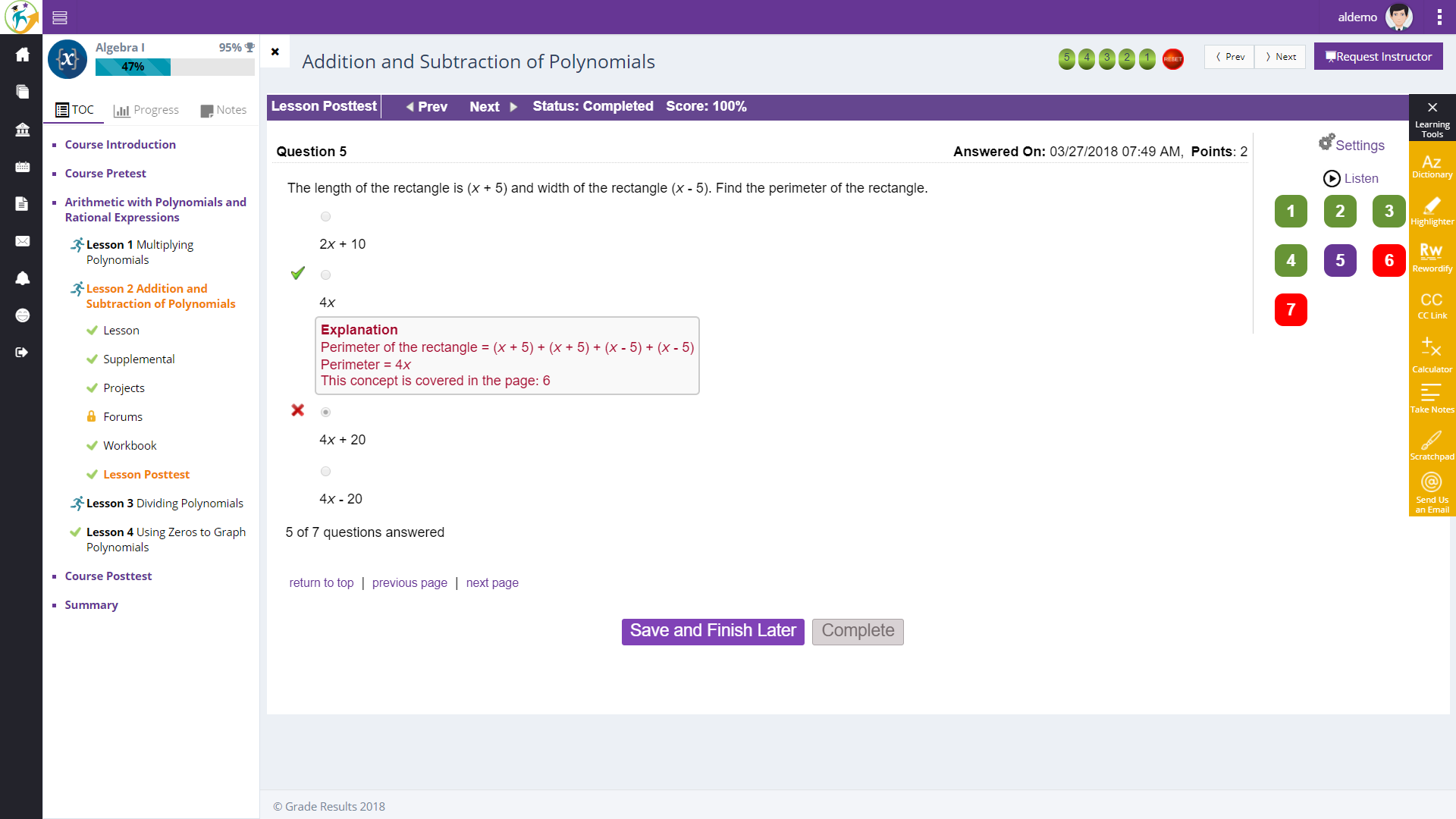
- At the end of the lesson the student is assessed on the lesson. Five multiple choice questions are present to evaluate the student’s comprehension of the material in the lesson. If mastery is not achieved, the student can reset the lesson, which gives the student additional attempts to answer a new set of questions. Resets are represented with numbered circles that go from 5 down to 1.
In this example, five (5) resets are allowed. The number of resets, allowed per lesson, is based upon the school specifications. After a reset has been used, one numbered circle will be removed.
- Incorporation of Flocabulary: This is an online library of educational hip-hop songs and videos for grades K-12.
Learning Tools
- Read Aloud/Listen Button: Incorporation of Polly, for bimodal presentation, is beneficial to auditory learners and learners who struggle with reading. The text is read aloud so students will hear the lesson content. The words (and/or sentences) are highlighted at the same time, such as when using text-to-speech software with integrated highlighting which is helpful for visual learners. The text can be read in English, Spanish or French.
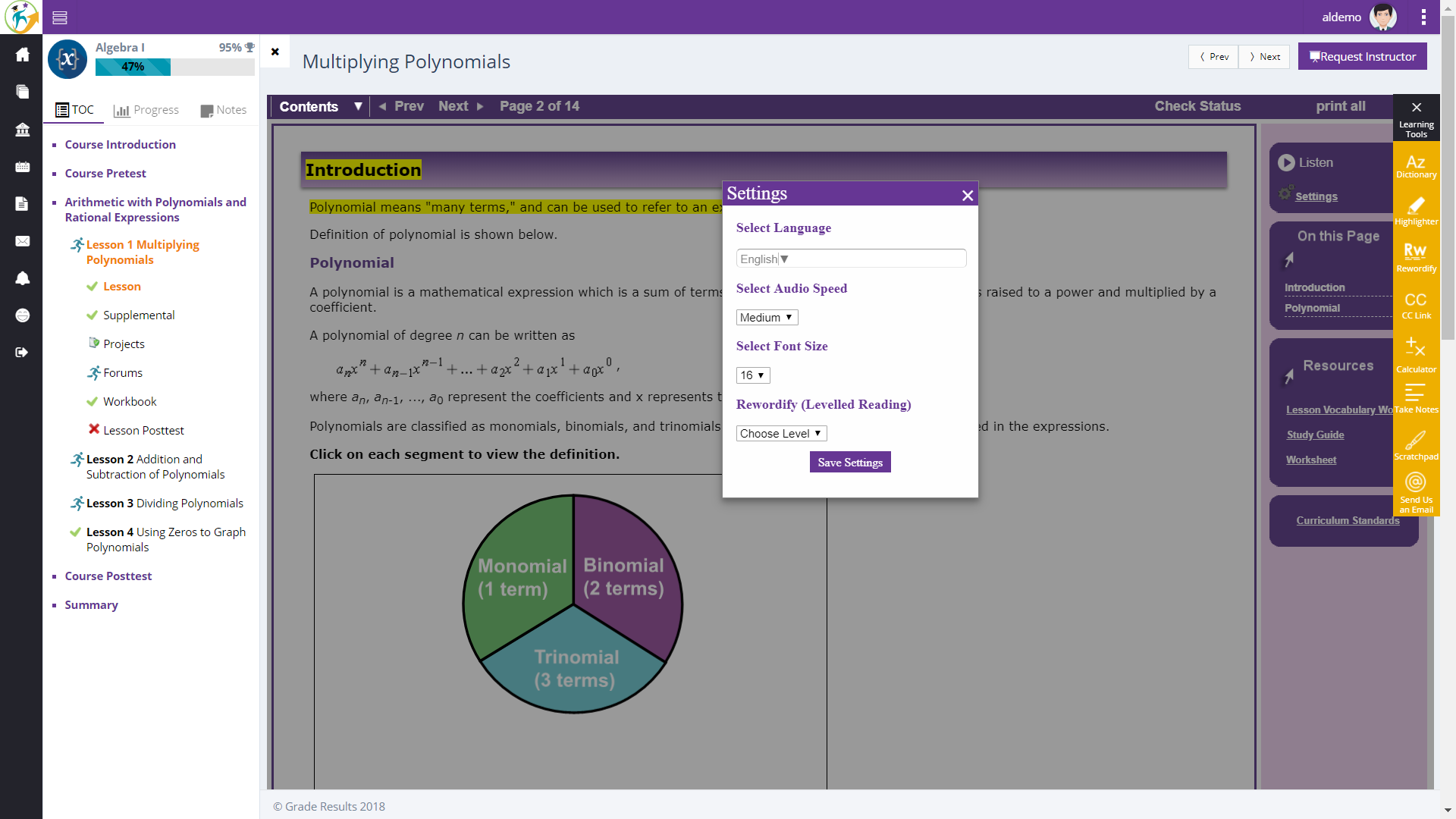
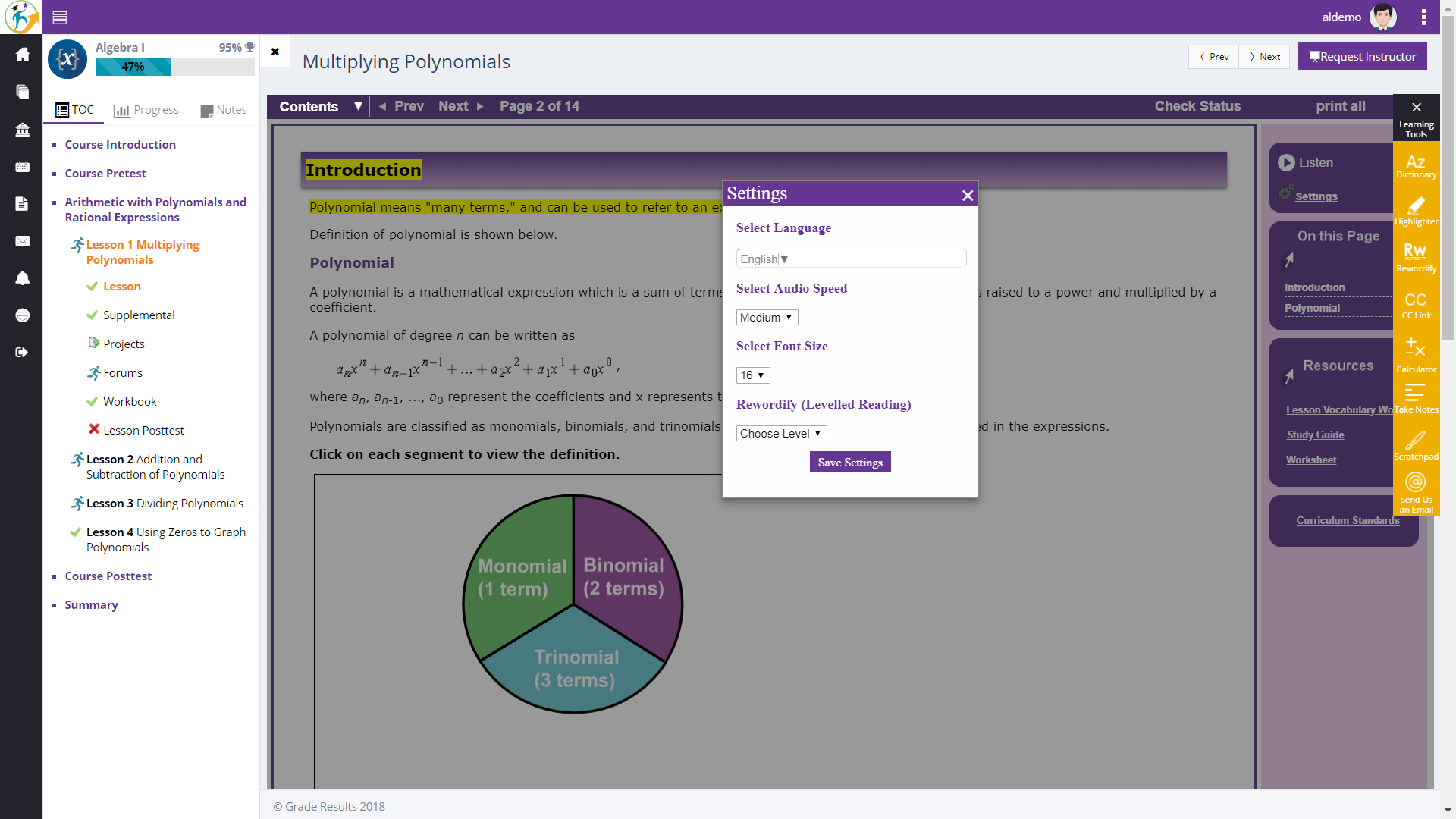
- Dictionary: This tool allows students to search any lesson vocabulary words or content that they want.
- Highlight Text: The highlighter tool allows students to highlight content in their courses. To highlight text, student must first select the text by clicking and dragging over it with their mouse, then click on “Save” button.
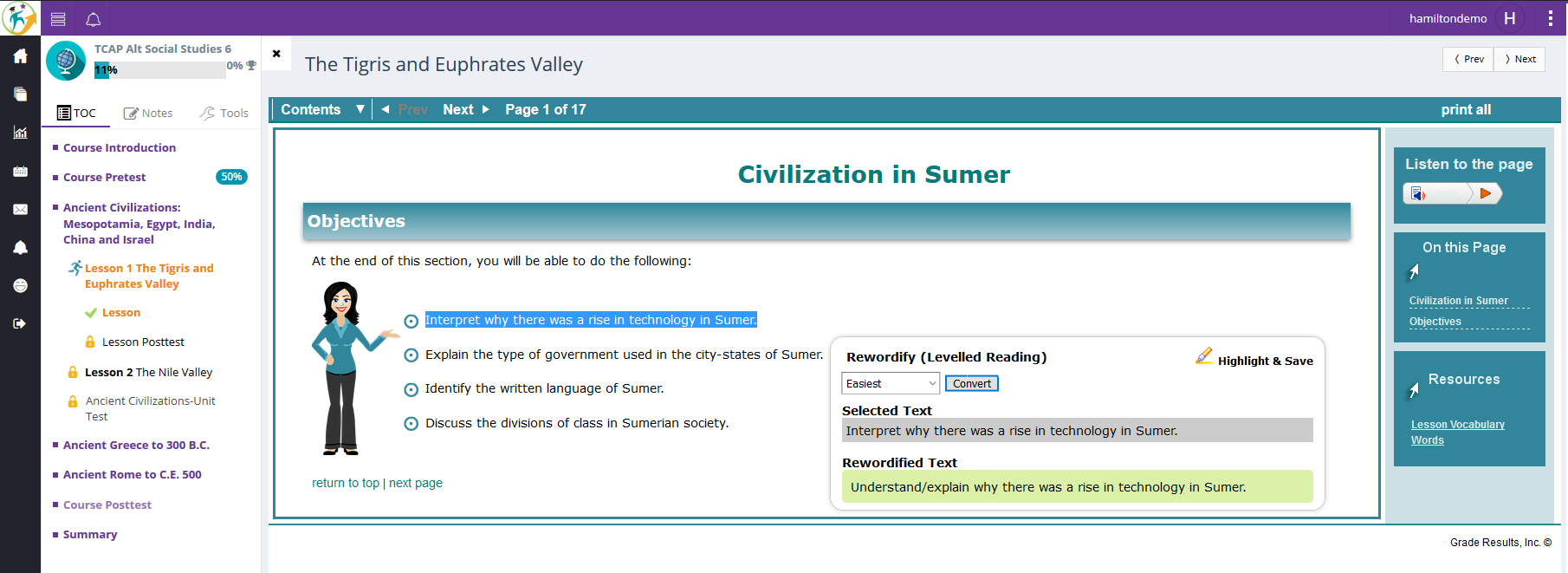
- Incorporation of Rewordify: It is powerful online software tool that improves reading, learning, and teaching and offers these functions:
- Intelligently simplify difficult English, for faster comprehension
- Effectively teach words, for building a better vocabulary
- Help teachers save time and produce engaging lessons
- Help improve learning outcomes
To use Rewordify:
- Select the text to get the pop-up to change the level, then click on convert.
- Highlighter is also incorporated with the selection tool. Students can either take notes or highlight the sentences for future reference.
- Lesson Notes - Students can retain information by typing or copying and pasting important information into the Lesson Notes. Lesson Notes can then be printed at the student’s discretion if they would like to reference course content later.
- Calculators include: Normal, Scientific, and Graphing.
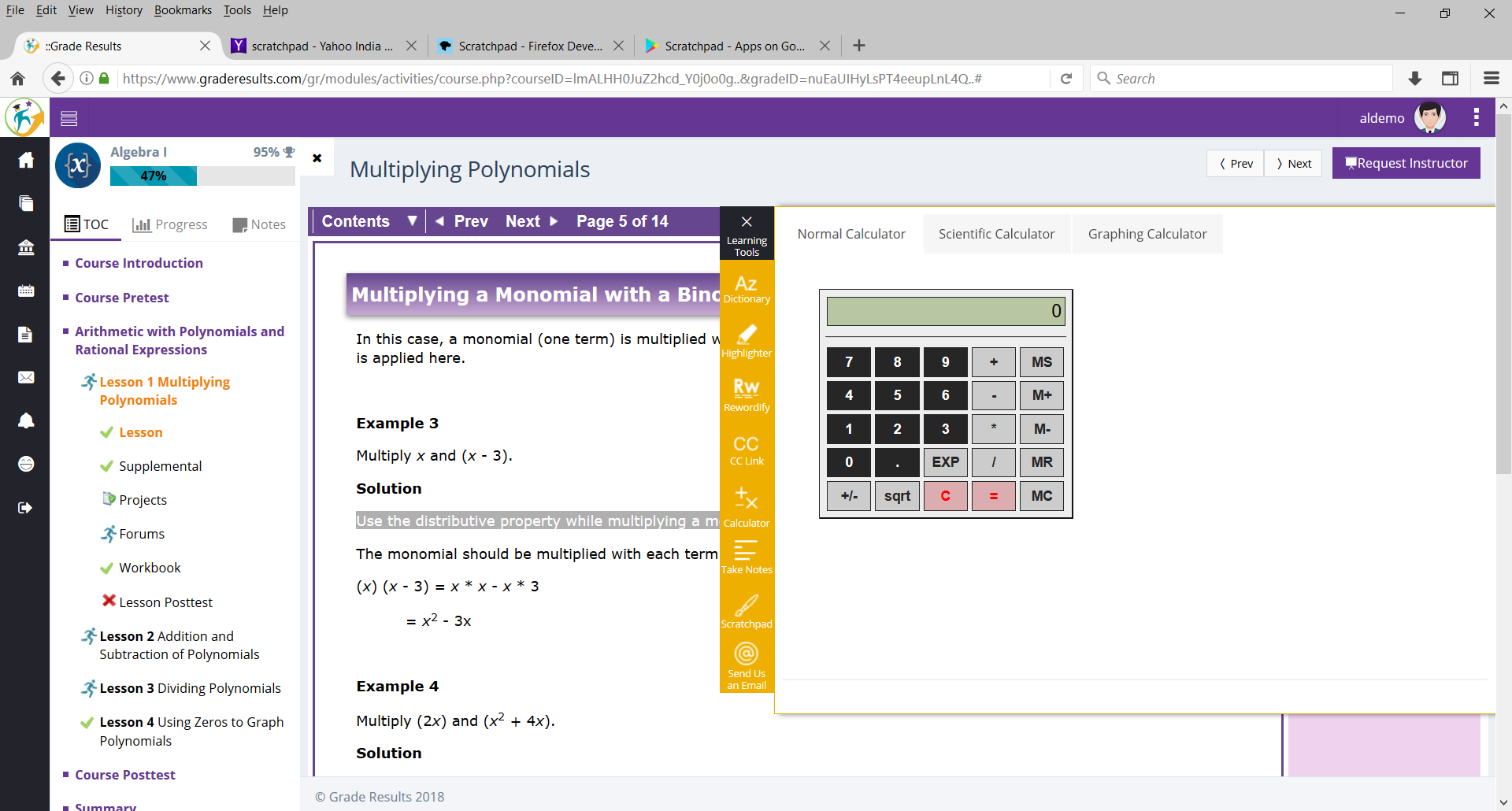
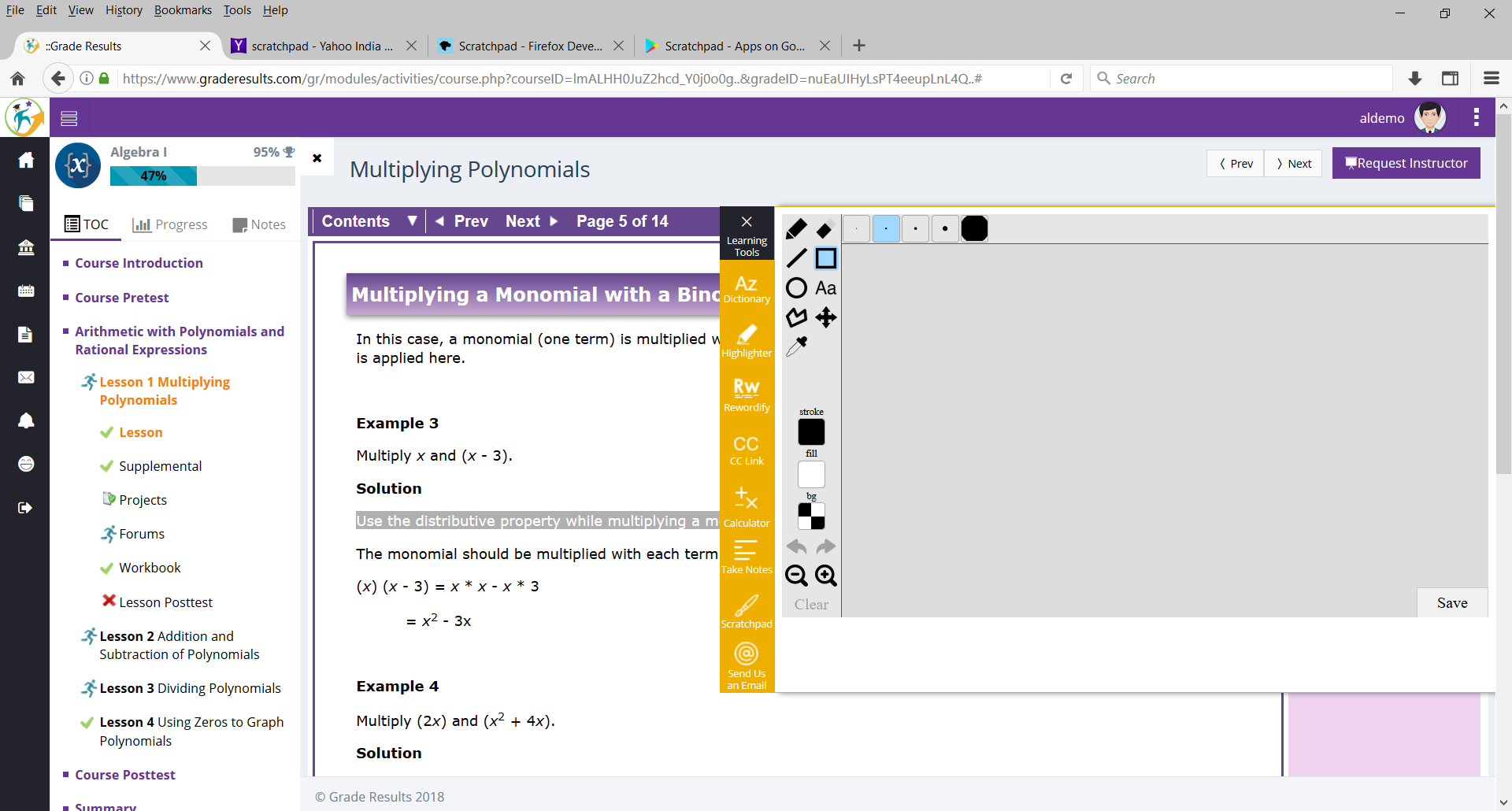
- Scratchpad: This tool allows student to type, write, and draw shapes to workout roughly.
Was this article helpful?
That’s Great!
Thank you for your feedback
Sorry! We couldn't be helpful
Thank you for your feedback
Feedback sent
We appreciate your effort and will try to fix the article