GR LearnPro - Creating and Enrolling a New Teacher

The Manage Students feature in GR LearnPro allows administrators and educators to efficiently add, manage, and enroll teachers.
Adding a Teacher
1. Go to Manage Students à tab Teachers

2. Click on “Add Teacher”

3. A page is displayed to fill the following information:
|
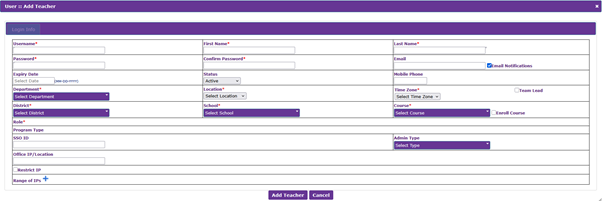
Once all the info is added, click on “Add Teacher”
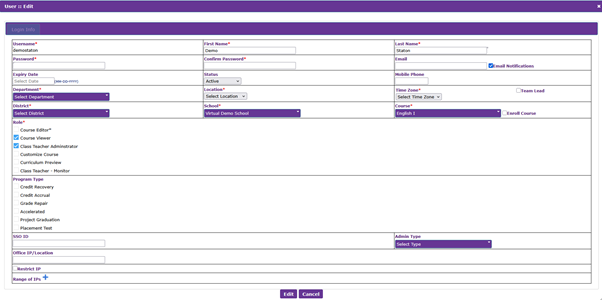
4. To edit or modify a current teacher:
- Use the search filter to find the teacher
- Click the “Edit” button to access the teacher data page

5. Make the required changes and click on “Edit” at the end of the page
Tips
- Ensure adding all schools to the teacher for proper monitoring of students.
- Add all the necessary courses to the teacher to make sure the progress of the courses are smooth.
Was this article helpful?
That’s Great!
Thank you for your feedback
Sorry! We couldn't be helpful
Thank you for your feedback
Feedback sent
We appreciate your effort and will try to fix the article