Page 1: Objectives
At the end of this lesson, you will be able to do the following:
- Set pacing for a course.
- Edit/modify a set pacing.
Page 2: Purpose
- Pacing guide is the set of dates provided for the activities of the courses
- Once set up, the activities will lock and unlock on the particular date(s)
- Care should be taken to not include holidays and vacation periods in the pacing guide.
Page 3: Add Pacing
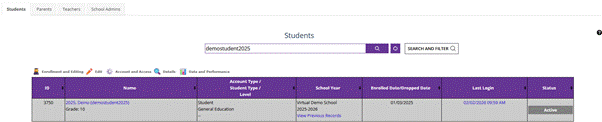
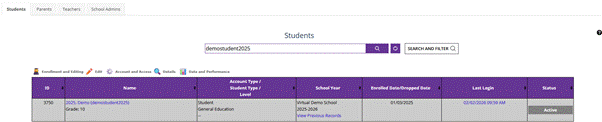
- Search the correct student in the Manage Students
Page 4: Add Pacing (contd…)
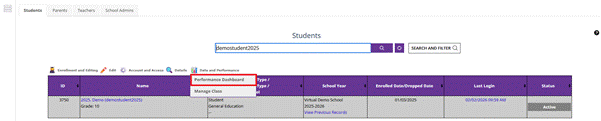
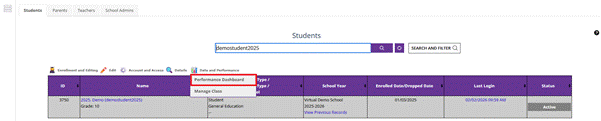
- Click on Performance Dashboard
Page 5: Add Pacing (contd…)
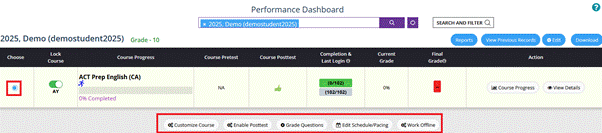
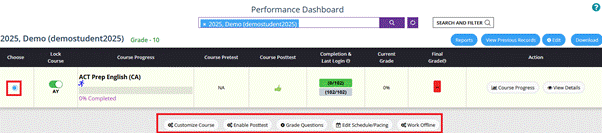
- On the courses listed, click on the radio button before the required course, and the customization features will appear below it
Page 6: Add Pacing (contd…)
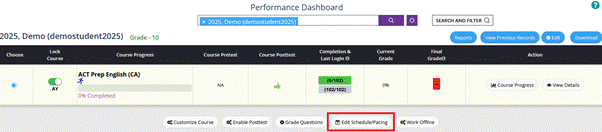
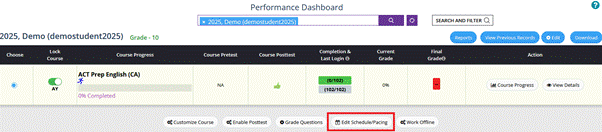
- Click on Edit Schedule/Pacing
Page 7: Add Pacing (contd…)
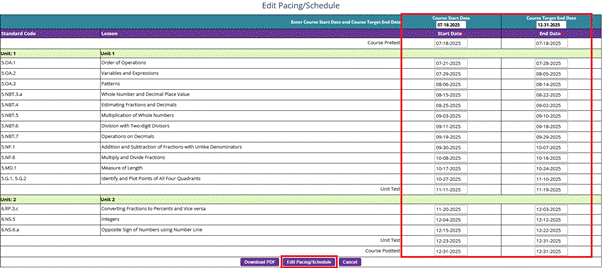
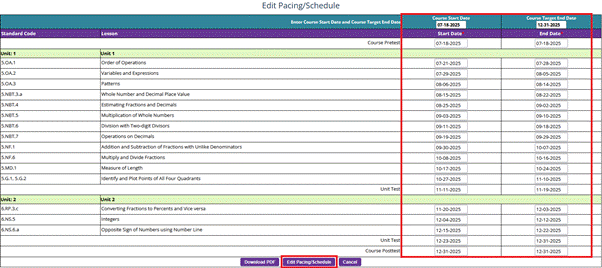
- In the new window that opens, enter the start date and end date, and click on Edit Pacing/Schedule
Page 8: Add Pacing (contd…)
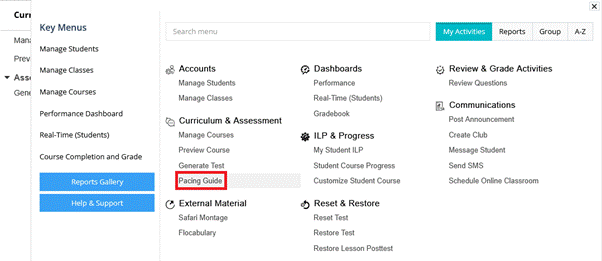
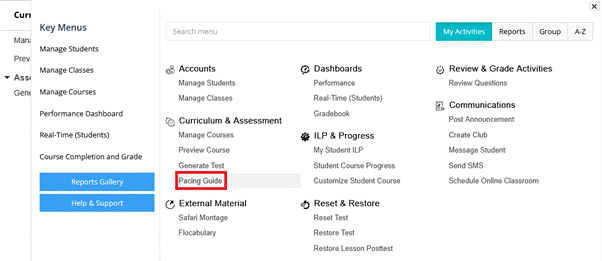
- Alternatively, the Pacing Guide page under My Activities à Curriculum & Assessment can be used to edit/delete/download the pacing guide
Page 9: Add Pacing (contd…)
- To modify/remove the pacing, the same page can be visited and the dates can be changed/removed

Now, you have learned how to add and modify a pacing guide.
Video
Welcome! In this video, you will learn how to add and modify a pacing guide for student activities in the system.
Start by searching for the correct student in the Manage Students section.
Once located, click on the Performance Dashboard.
Now, under the listed courses, click on the radio button before the required course. The customization features will appear below the selected course.
Next, click on Edit Schedule/Pacing.
In the new window that opens, enter the start date and end date for the pacing. Once done, click Edit Pacing/Schedule to save your changes.
If you need to modify or remove any pacing, you can return to the same Pacing Guide page.
Under My Activities > Curriculum & Assessment, you can edit, delete, or download the pacing guide.
Simply adjust the dates or remove them as needed.

Now, you have learned how to add and modify a pacing guide. Thanks for watching!
Was this article helpful?
That’s Great!
Thank you for your feedback
Sorry! We couldn't be helpful
Thank you for your feedback
Feedback sent
We appreciate your effort and will try to fix the article