Page 1: Objectives
At the end of this lesson, you will be able to do the following:
- Post announcements to student/school/district.
- Edit an already posted announcement.
Page 2: Purpose
- The post announcement feature helps admins and teachers post announcements regarding new features, schedules, messages, and notifications.
Page 3: Post an Announcement
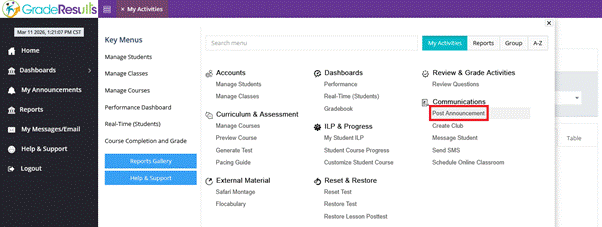
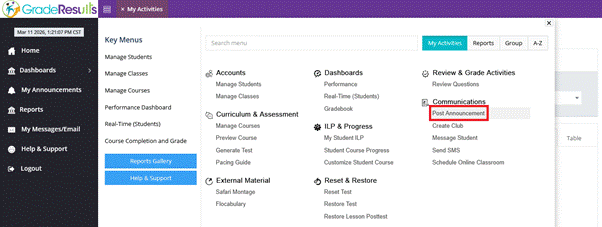
- Go to My Activities à Communications à Post Announcement
Page 4: Post an Announcement (contd…)
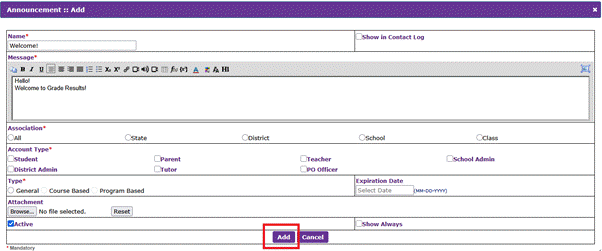
- Click on Add

Page 5: Post an Announcement (contd…)
- In the pop-up that appears:
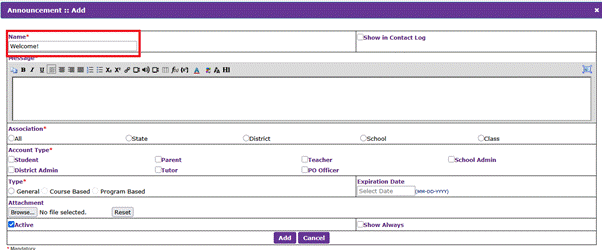
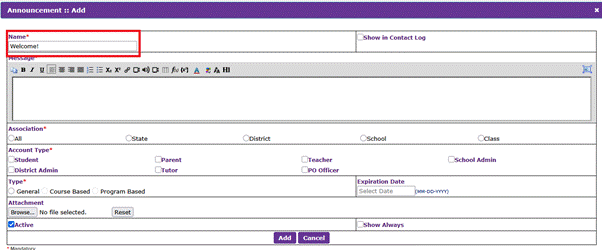
- add the Title of the message
Page 6: Post an Announcement (contd…)
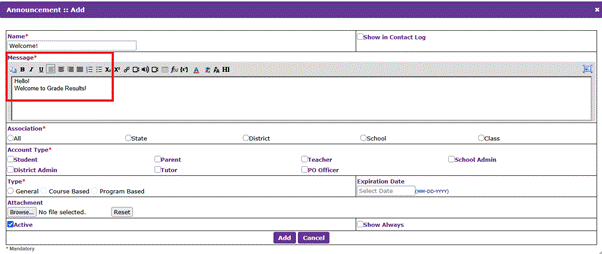
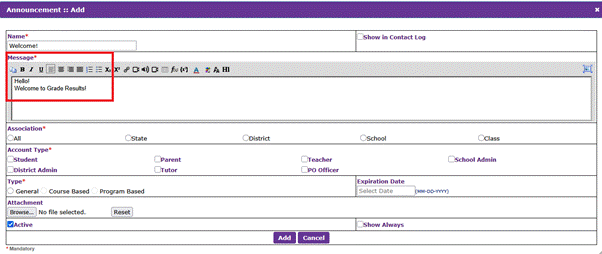
- the actual message to be announced
Page 7: Post an Announcement (contd…)
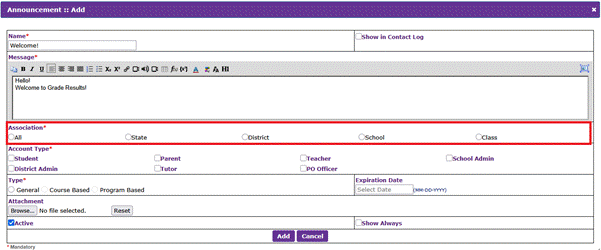
- the association to which the message must be posted
Page 8: Post an Announcement (contd…)
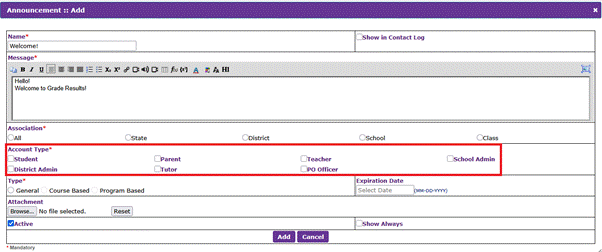
- the account type to which the announcement must be visible
Page 9: Post an Announcement (contd…)
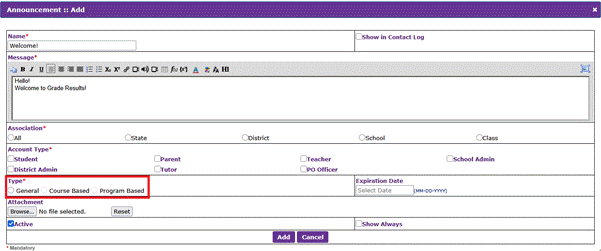
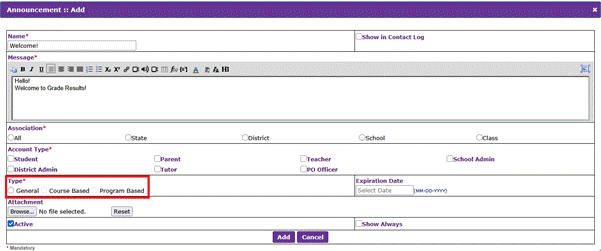
- the type of message
Page 10: Post an Announcement (contd…)
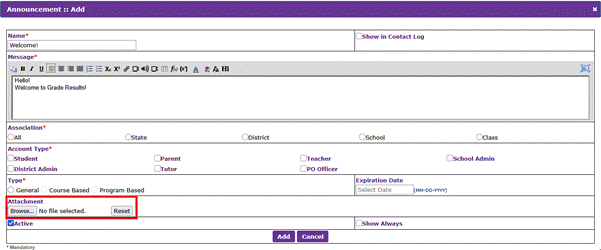
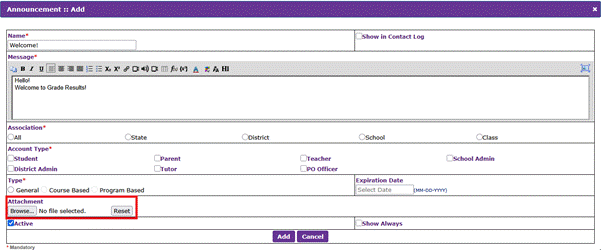
- if there are any lengthy announcements, it can be posted in the form of attachments
Page 11: Post an Announcement (contd…)
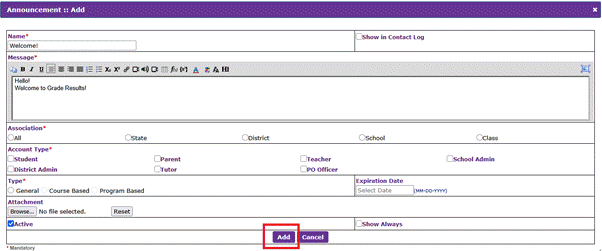
- Click Add to post the message
Page 12: Post an Announcement (contd…)
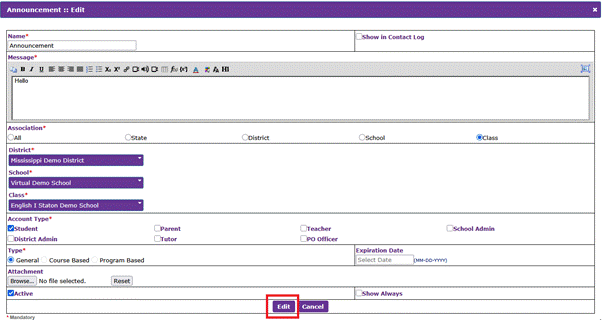
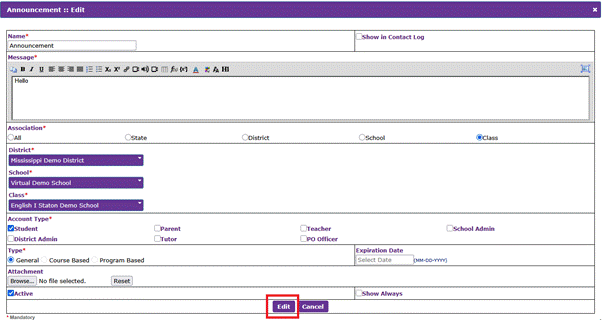
- If any corrections/modifications/changes have to be done to an already posted announcement, click on the respective announcement and click the Edit button

Page 13: Post an Announcement (contd…)
- Once the corrections are done, click on the Edit button to save and publish the announcement
Now, you have learned how to post and edit announcements.
Video
Welcome! In this video, we will walk you through the steps to “post an announcement” in the system.
First, go to My Activities in the system, and select Post Announcement from under the Communications tab.
To add an announcement, click on Add.

In the pop-up that appears, fill in the Title for the announcement.
Next, add the message you want to announce.
Select the association to which the message should be posted.
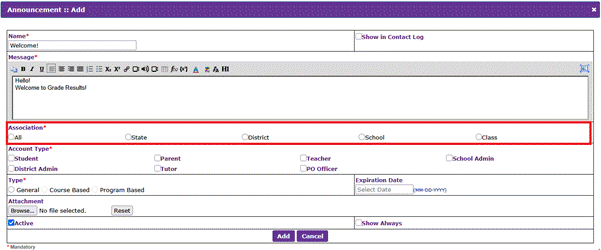
Choose the account type to which the announcement must be visible.
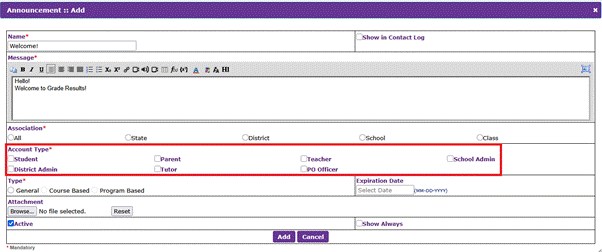
Next, select the type of message.
If the announcement is lengthy, you can attach the files.
Once everything is set, click Add to post the message.
If you need to make corrections to a posted announcement, simply click on the announcement, then, click the Edit button.

Make the necessary changes, and click Edit again to save and publish the updated announcement.
Now, you have learned how to post and edit announcements in the system. Thanks for watching!
Was this article helpful?
That’s Great!
Thank you for your feedback
Sorry! We couldn't be helpful
Thank you for your feedback
Feedback sent
We appreciate your effort and will try to fix the article